MP3 splitter: split or cut an audio file in two, where you choose
Splitter will let you choose any audio file on your computer, drag a cursor to the place you want the cut, hear it, and split the file in two, with the sound copied as it is and nothing re-encoded or uploaded. It can also find the files in a big library where a long silence means two songs were saved as one.
Join the waiting list
We will email you once, when Splitter opens.
The problem
Sometimes one audio file holds two things that should be apart: two songs saved as one, a recorded radio show or podcast with a break in the middle, or a side of a record or a tape that you copied to your computer in one go. Cutting such a file in an audio editor usually means decoding it and saving it again, and each new encode throws away a little more detail.
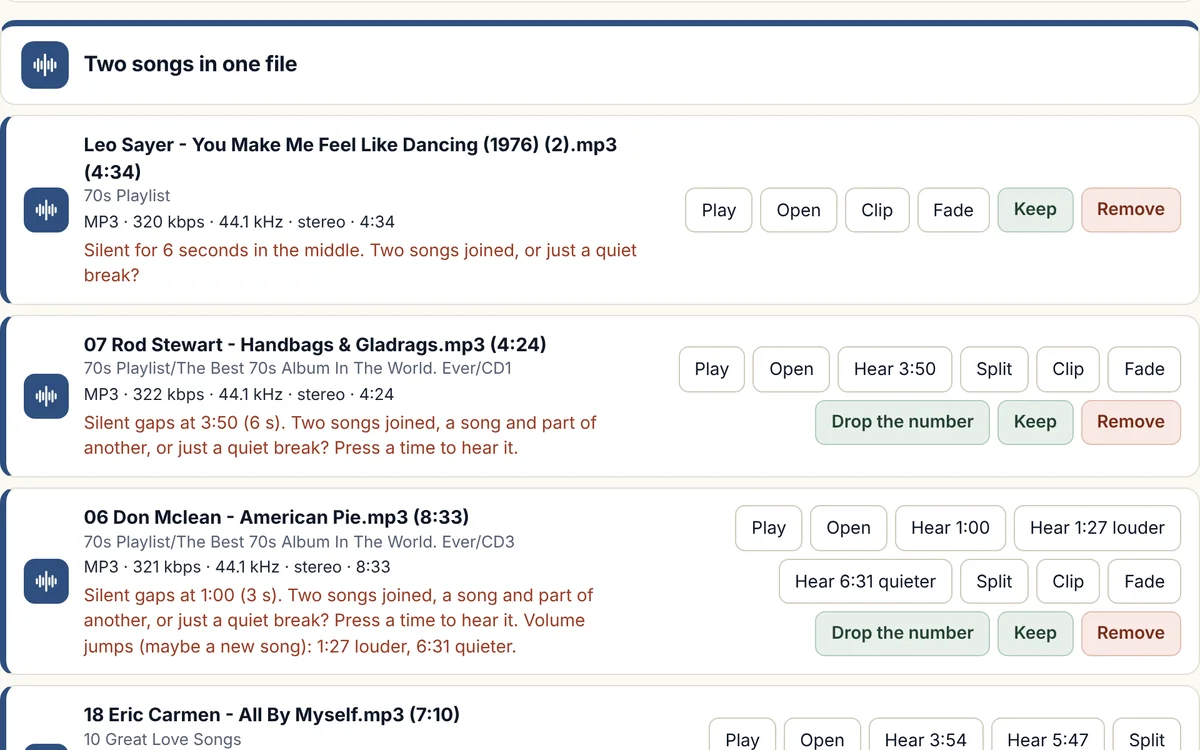
A long silence in the middle of a file is the clue that two songs were saved as one, and in a big library nobody finds these by ear, because the file looks like any other until you play past the gap. Our test library had 193 files like this.
A file often holds one whole song and only part of another, so cutting it in two is not always what you want, and Splitter lets you keep both parts, only the first part, or only the second.
How Splitter will split an MP3 file
Choose the song
Press Split a song and type part of the name, or paste the path of any file on your computer. Or run the deeper check, and Splitter lists the files that have a long silence in the middle, each with a Split button. The deeper check runs in the background and can take hours on a large library.
Drag the cursor to the cut
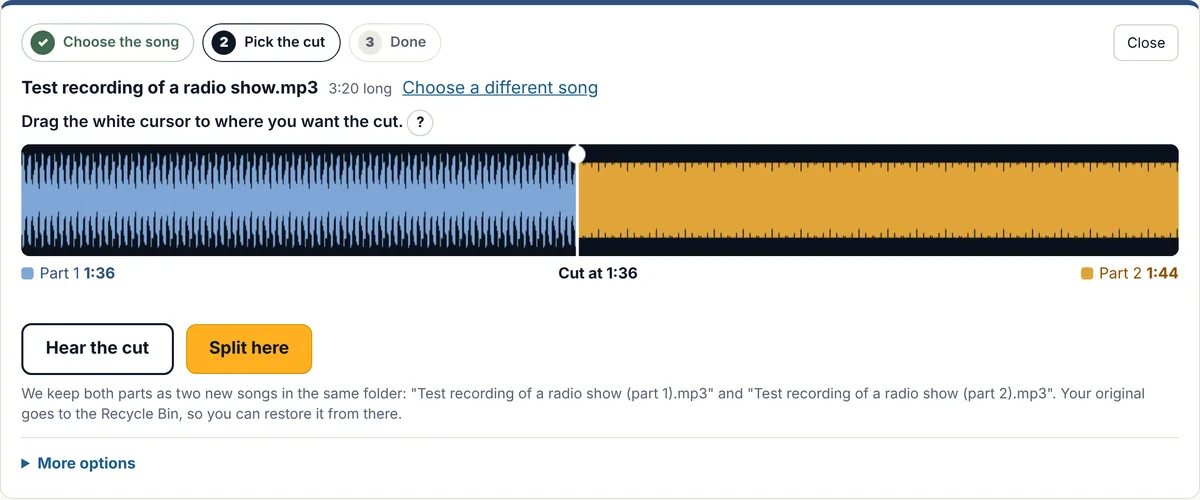
The review page draws a picture of the sound, with part 1 in blue and part 2 in gold. Drag the white cursor to the place you want the cut. A song you chose by name starts with the cursor in the middle, and a file found by the deeper check starts with it on the long silence, and its silences are also offered as suggested places.
Hear the cut
Press Hear the cut to play three seconds either side of the cursor, and nudge the cursor and listen again until it falls in the right place. Nothing is cut until you press Split here.
Choose what to keep, if you want to
Under More options you can type the time of the cut, nudge the cursor by a tenth of a second or more, play from the cursor, keep both parts, only part 1, or only part 2, and ask for a fade-out on the end of part 1 and a fade-in on the start of part 2. Both parts is the default, and the fades start at 0. A fade is made in the new file only.
The sound is copied
The parts you keep become new files beside the original, named (part 1) and (part 2), with the sound copied as it is.
Done: repair the new songs further
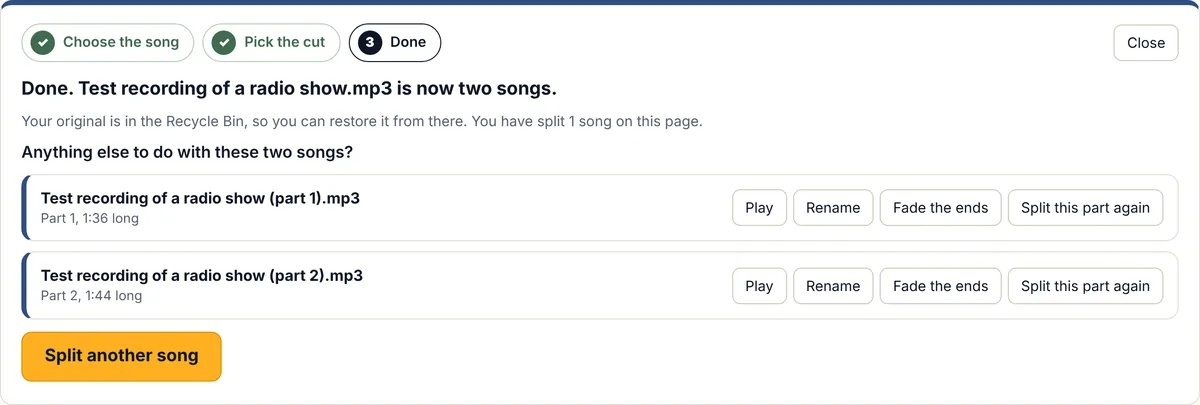
The last screen lists the new songs, each with Play, Rename, Fade the ends and Split this part again buttons, and Split another song starts again.
The original goes to the Recycle Bin
You can restore it from there if you change your mind. There is no Undo button for a split, so the Recycle Bin is the way back.
Cut any file in two, not only the ones it finds
Splitter is not limited to the files it flags. Press Split a song, type part of the name or paste the path of any song or recording on your computer, including one on a USB stick, and the review page draws a picture of the sound, with the cursor in the middle. Drag the white cursor to the place you want the cut, press Hear the cut to listen to three seconds either side of it, and press Split here when it sounds right.
That suits a file that holds two songs, a recording of a radio show or a podcast episode with a break in the middle, a set from a night out, and a side of a record or a tape that you copied to your computer in one go. Splitter makes one cut at a time, so to make three parts you cut one of the parts again, and the last screen has a Split this part again button for that.
After the cut: rename, fade or cut again
When the split is done, the last screen lists the new songs, and each one has buttons to Play it, Rename it, Fade the ends, or Split this part again. You can finish the job on that one screen: cut a long recording in two, cut the second part again, and rename each part before you leave.
The original goes to the Recycle Bin. There is no Undo button for a split, so if you change your mind you restore the original from the Recycle Bin and delete the two new songs.
How to cut an MP3 file without losing quality
Cutting an MP3 file in an audio editor usually means decoding it and saving it again, and each new encode throws away a little more detail. Splitter copies the sound as it is, so both parts keep exactly the quality of the original.
You choose any song yourself, or Splitter lists the files in your library that have a long silence in the middle, and either way you decide where the cut goes. To save any other part of a song as its own file, use Clip in Trim.
Which file types
- MP3Works
- MP2Works
- M4AWorks
- WMAWorks
- WAVWorks
- FLACWorks
- AIFFWorks
- OGGWorks
Some types are handled differently, and that is our rule, not a limit of the music files. The reasons are at the top of the file-types table.
N/A means we do not offer it for that type. FLAC, AIFF, and OGG were tried on real songs from our own library that we converted into those types, on a Windows computer, and we have not yet tried files that came from a shop. MP2 was tried on real MP2 songs from our own library, and not yet on Windows.
What it will do
- Let you choose any song or recording on your computer, and cut it in two where you choose, with a cursor you drag on a picture of the sound.
- Let you listen to the place first, before anything is cut.
- Find files that have a long silence in the middle, and show you the exact spot.
- Cut at the spot you choose, without re-encoding.
- Let you keep both parts, or only one of them, with a fade on a new part if you ask for one.
- Offer Rename, Fade the ends and Split this part again for each new song, on the last screen.
- Send the original to the Recycle Bin so you can restore it.
What it will not do
- Find songs that are joined with no silence between them, such as a continuous DJ mix.
- Make a song longer or add sound that is not in your file.
- Cut a long recording into many tracks at once, or to a track list or cue sheet. Splitter makes one cut at a time, so for three parts you cut one of the parts again. A free tool such as mp3splt or mp3DirectCut, which take a cue sheet, suits a long recording that you already have a track list for.
- Save any part of a song as its own file. That is the Clip button in Trim.
- Run on a Mac yet. The first version is for Windows.
How Splitter compares with mp3splt and mp3DirectCut
mp3splt is a free, open source tool that cuts a file at times you give it, from a cue sheet, by silence detection, or at a fixed length, and it works on the files or folders you point it at.
mp3DirectCut is a Windows editor that cuts MP3 files without decoding them again. It can detect pauses and split a long recording into separate files at cue points, and it works with cue sheets.
Splitter works from the other end. You choose a file, drag a cursor on a picture of the sound to the place you want the cut, listen to it, and split the file there with one button, and it can also list every file in your library that has a long silence in the middle, with the exact spot, so you can hear it first. MP3, MP2, M4A, WMA, and WAV songs are cut without re-encoding, and a FLAC song is written out again as FLAC, which keeps every sample.
Facts about the other tools were checked on 14 November 2026. Sources: mp3splt project: about; mp3splt manual; mp3DirectCut, Wikipedia.
Questions about Splitter
How do I split MP3 files by silence?
Run the scan, and Splitter lists the files where a long silence in the middle means two songs were saved as one, shows you the exact spot, and splits the file there with one button. The sound is copied as it is, with nothing re-encoded.
Is this like mp3splt, mp3DirectCut or Audacity?
mp3splt and mp3DirectCut also cut MP3 files without re-encoding, and they can cut a long recording into tracks from a cue sheet, which Splitter cannot do, and Audacity is a full audio editor. Splitter is smaller: you choose a file, drag a cursor to the place you want, listen to it, and make one cut with the sound copied as it is, and it can also search your whole library for the files that hold more than one song, so you do not have to find them yourself. Our guide explains how a file ends up holding two songs.
Will it cut my song in the wrong place?
Nothing is cut automatically. Every spot is listed for you to hear, and you choose where to cut, and you can drag the cursor to a different place.
Can I split any MP3, or only the ones it finds?
Any file in a type it supports. Press Split a song, type part of the name or paste the path, and the file can be anywhere on your computer, including on a USB stick, and then you drag the cursor to where you want the cut.
Can I listen before I cut?
Yes. Press Hear the cut to play three seconds either side of the cursor, or play from the cursor under More options, and nothing is cut until you press Split here.
How do I split an MP3 file in half?
Choose the song, and the screen shows how long it is. A song you chose by name starts with the cursor in the middle, so you can press Hear the cut and then Split here, or type a time under More options, such as 1:40 for a song that is 3:20 long. There is no separate button for equal parts.
Does Splitter upload my music?
No. Splitter works on your own computer, and the page you cut on is served by your own computer, so your songs are not uploaded anywhere.
Can I undo a split?
There is no Undo button for a split. The original goes to the Recycle Bin, so you can restore it from there and delete the two new songs.
Can I rename or fade the new parts after the split?
Yes. The last screen lists the new songs, and each one has Rename, Fade the ends and Split this part again buttons.
Can it split a long recording?
Yes, one cut at a time. In our test a made-up two-hour MP3 was split at the one-hour mark into two files of exactly one hour, in about five seconds on our test computer. To make more than two parts, cut one of the parts again.
Can I split a podcast, a radio show or a tape recording?
Yes, if it is saved as a file in one of the types in the table above, because Splitter cuts any audio file at the place you choose, and the cursor and the listening buttons are there to help you find that place. It does not cut to a track list, and it makes one cut at a time, so a recording with ten tracks takes nine cuts.
Does splitting lower the quality?
No. The sound is copied as it is, and nothing is decoded and encoded again.
Which file types can it split?
MP3, MP2, M4A, WMA, and WAV files. It uses the same copy-cut as Trim, and in our test each part came out the right length, and a split MP2 song kept its artist and title in both parts, and it also split OGG, AIFF, and FLAC songs that we converted from real songs in our own library, on a Windows computer, with parts of the right length and the tags kept, but we have not yet tried files that came from a shop in those types. A FLAC song is written out again as FLAC so that each part has the right length, and in our test no sample changed.
What if the silence is part of the song?
Some songs have a long silence inside them, such as a quiet break or a hidden track, and that is why each spot is listed for you to hear, and why nothing is cut until you choose.
Will it split a whole DJ mix?
No. It looks for silence, and a continuous mix has none.
How do I cut an MP3 file without losing quality?
Splitter cuts at the spot you choose and copies the sound as it is, so nothing is decoded and encoded again and the quality does not change, and it offers the files that have a long silence in the middle. To save any other part of a song as its own file, use Clip in Trim.
Can it split an MP3 file by silence?
Yes, in one way: it finds files with a long silence in the middle, shows you the spot, and splits there when you choose. It does not split at every quiet moment in a song.
Is this an audio track splitter?
It splits a file in two at the place you choose, one cut at a time, and it also finds files where a long silence shows that two songs were saved together. It does not cut one long recording into tracks from a track list or cue sheet, and it does not find the joins in a continuous mix.
The other five tools
Volume
Brings quiet and loud songs to one level, and never re-encodes a lossy song to do it.
Trim
Finds dead air before and after songs, and trims it without re-encoding.
Duplicates
Finds copies of the same song and suggests which to keep.
Broken files
Finds damaged, cut-short, and unloadable files before they fail mid-set.
Names
Tidies messy file names and names unnamed songs from your own library.
Want Splitter when it opens?
Join the waiting list and we will email you once, when it is ready.